Do I need to install anything?
No. ArakiTrade runs as a hosted service. You access the dashboard through a supported browser, and the backend takes care of fetching data, computing analytics, and refreshing snapshots.
What data does ArakiTrade use?
ArakiTrade works with end-of-day price and volume data for each symbol in the universe maintained on the backend. That data is sourced and managed by the ArakiTrade analytics pipeline; you do not need to upload your own files or manage vendor feeds.
How often are analytics updated?
Analytics are refreshed automatically whenever new daily data is ingested on the backend. In a typical configuration this happens shortly after the market close. The General Market Data widget shows when the database was last updated, and the main symbol header in the Basic view shows when that stock’s snapshot was last refreshed directly beneath its price.
What is the difference between Basic and Advanced views?
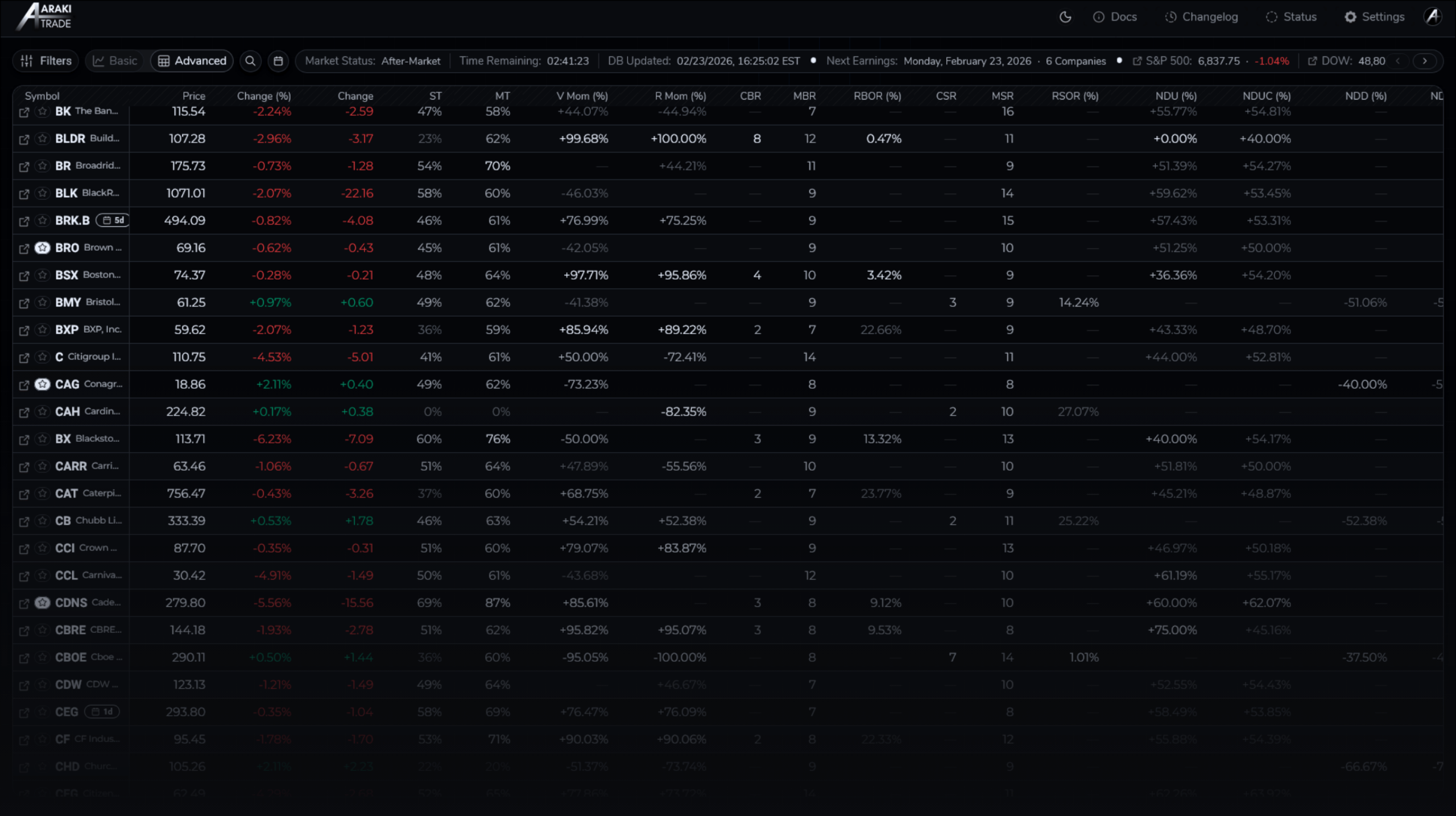
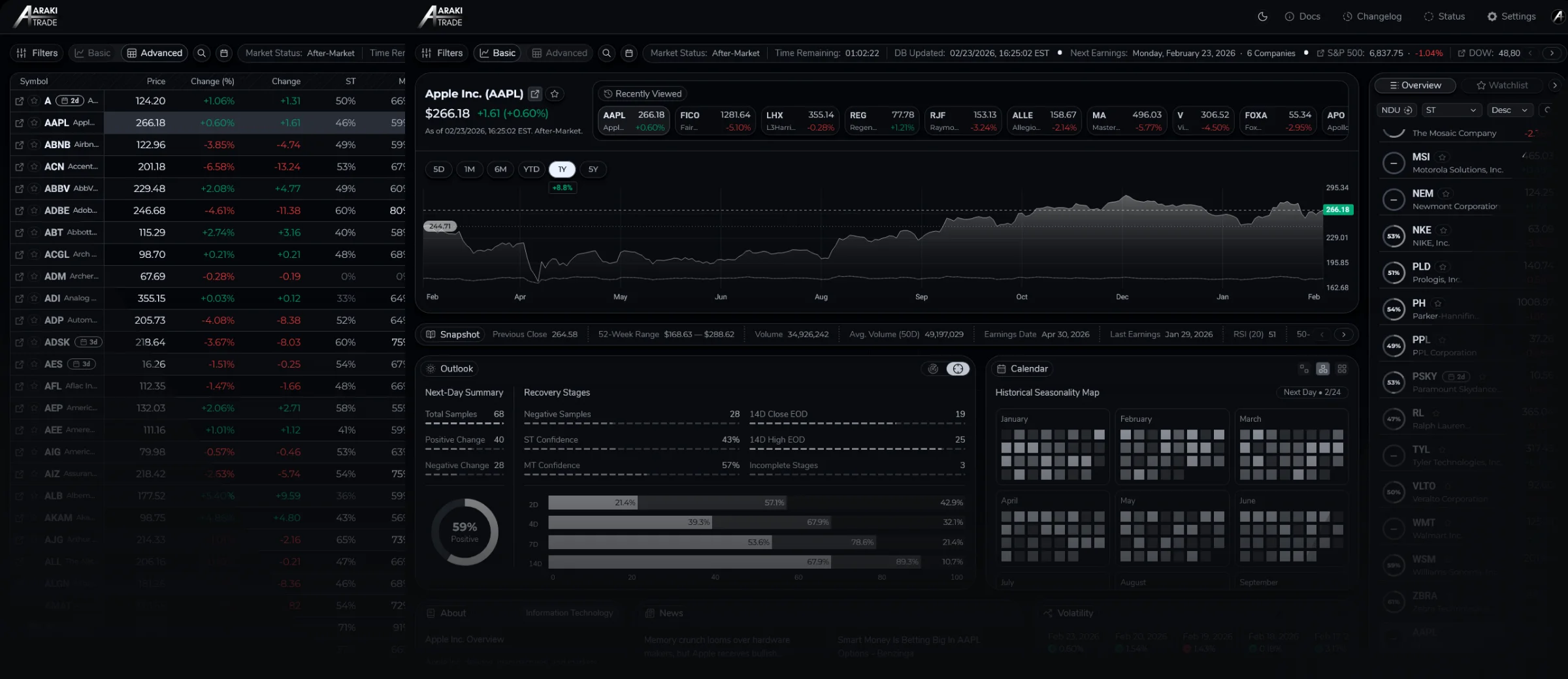
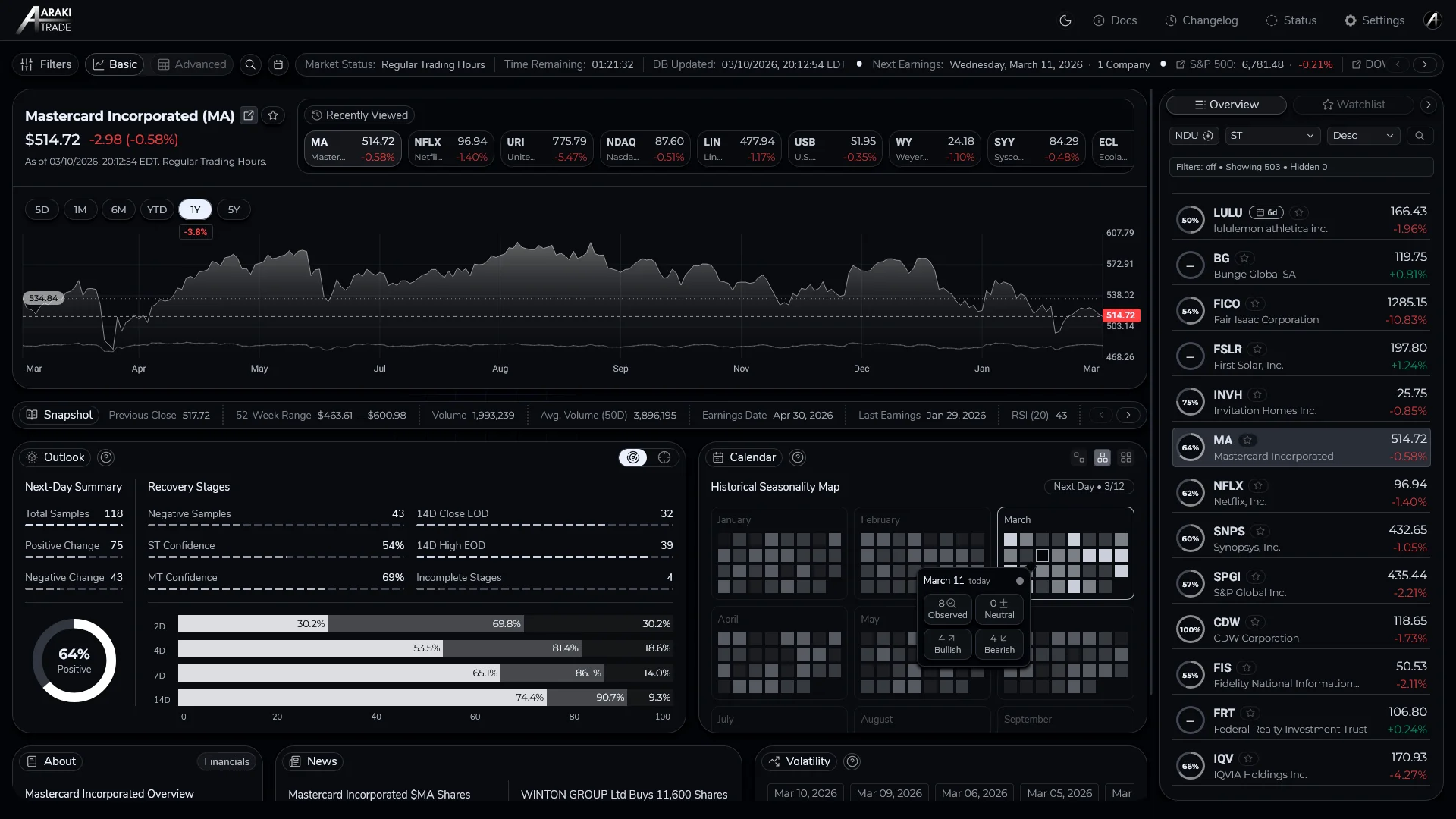
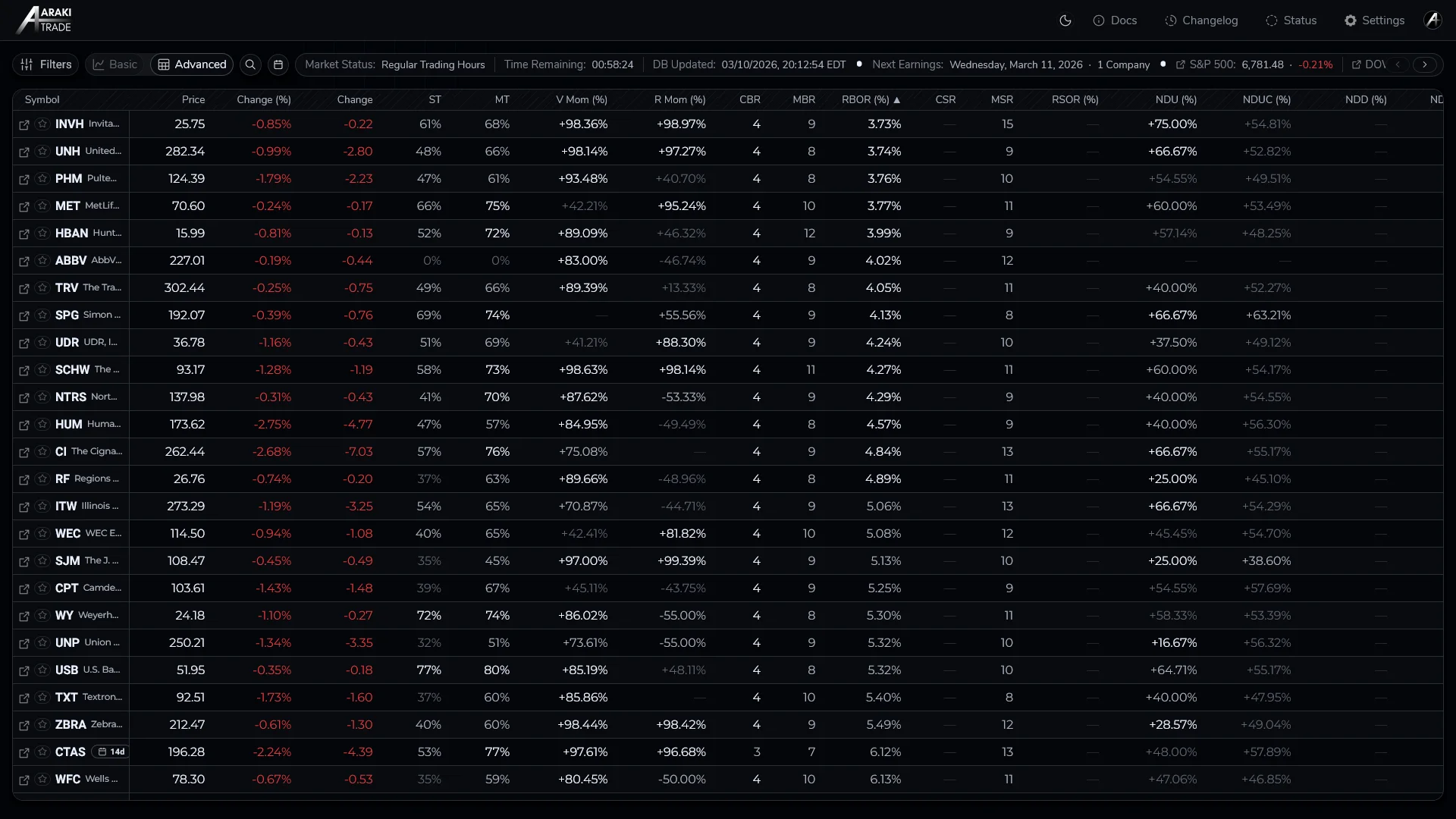
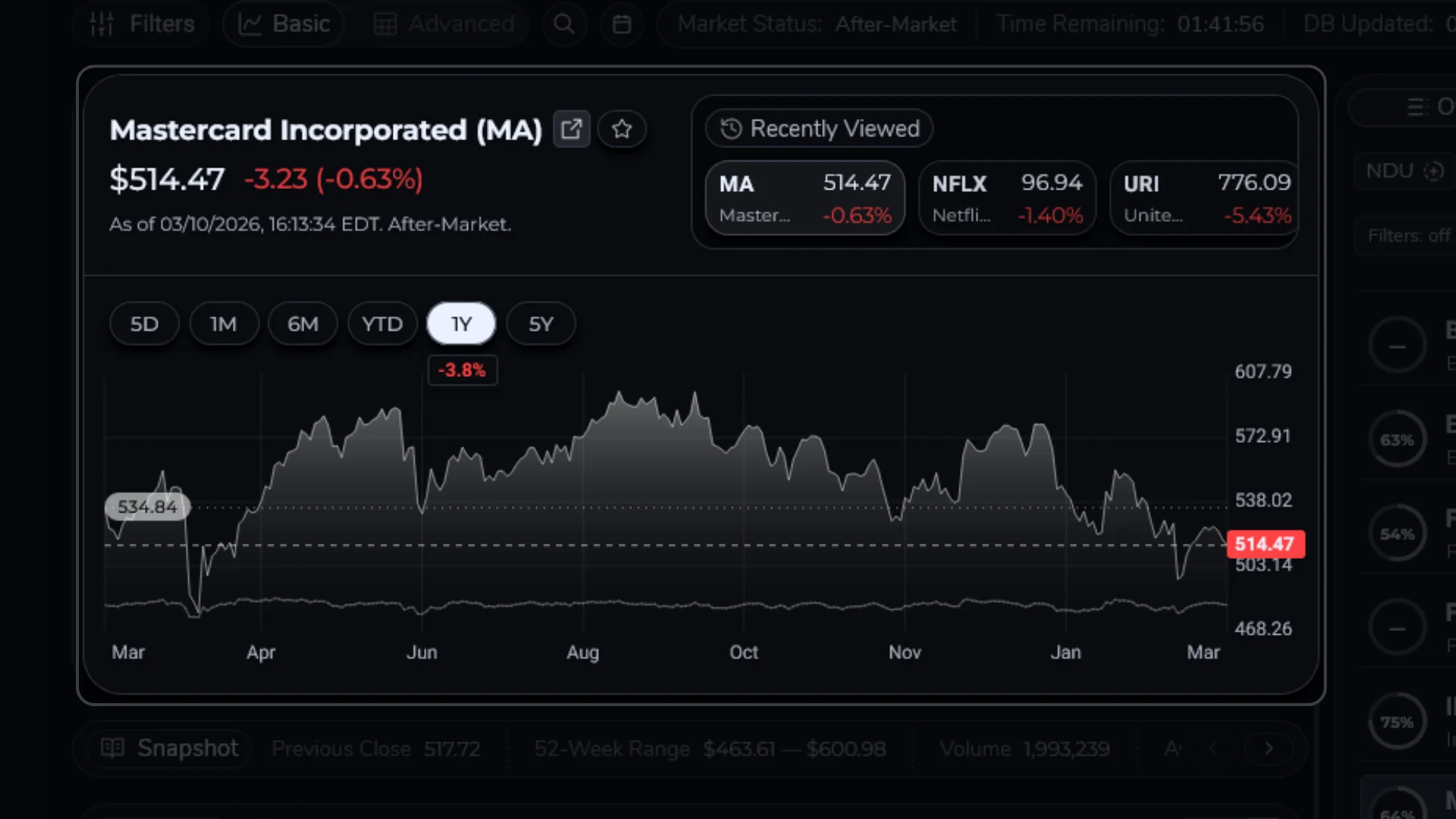
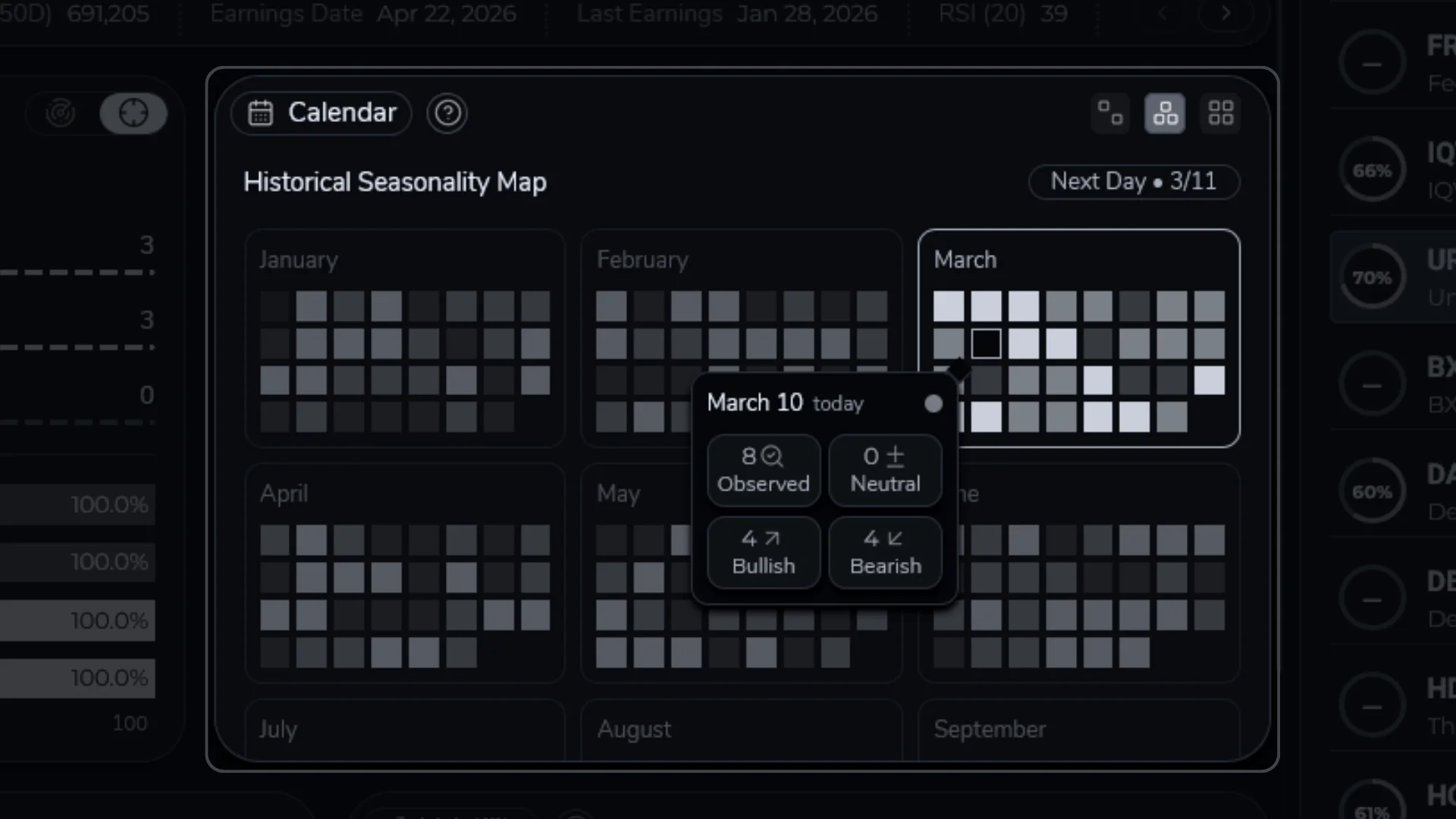
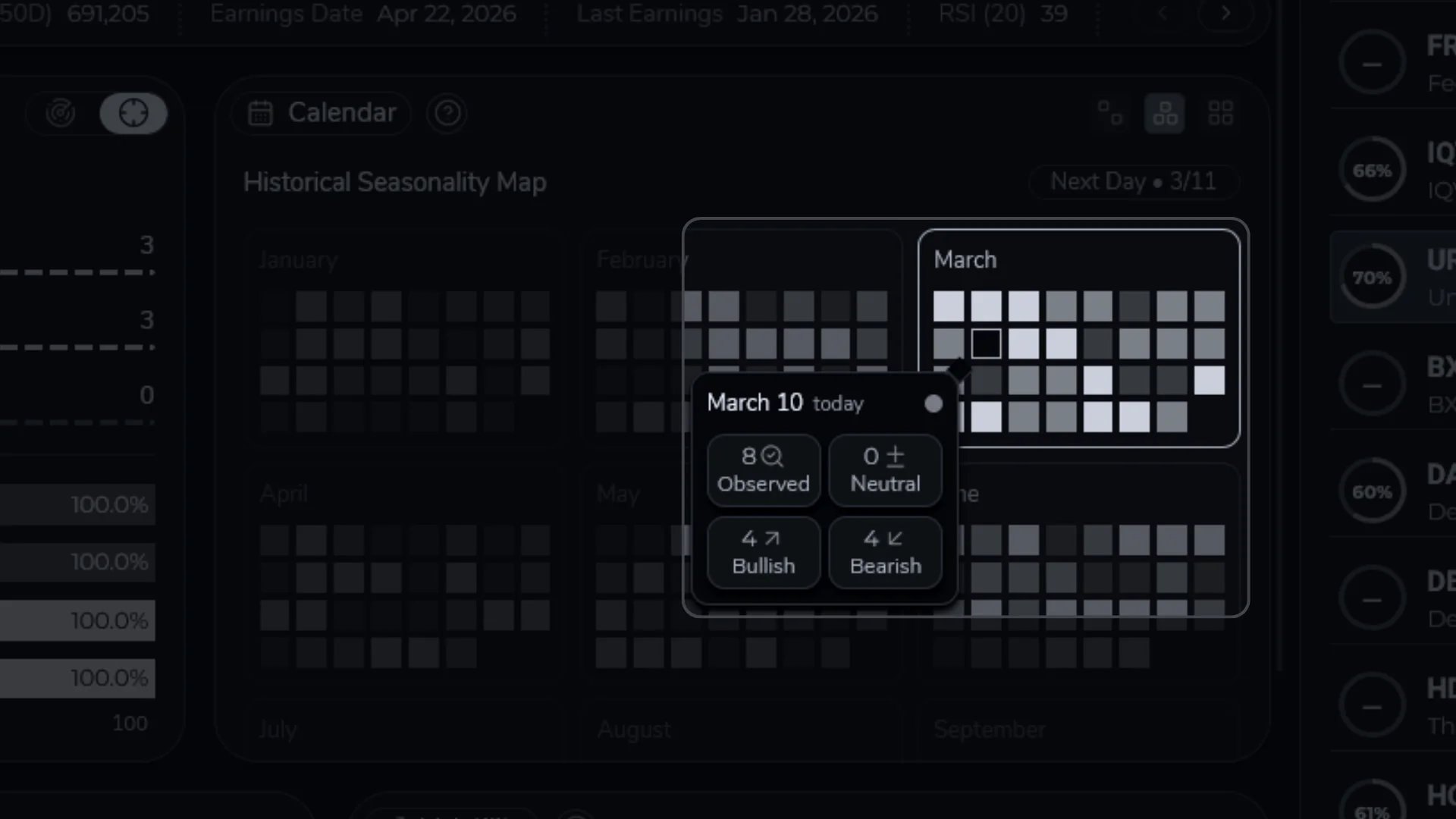
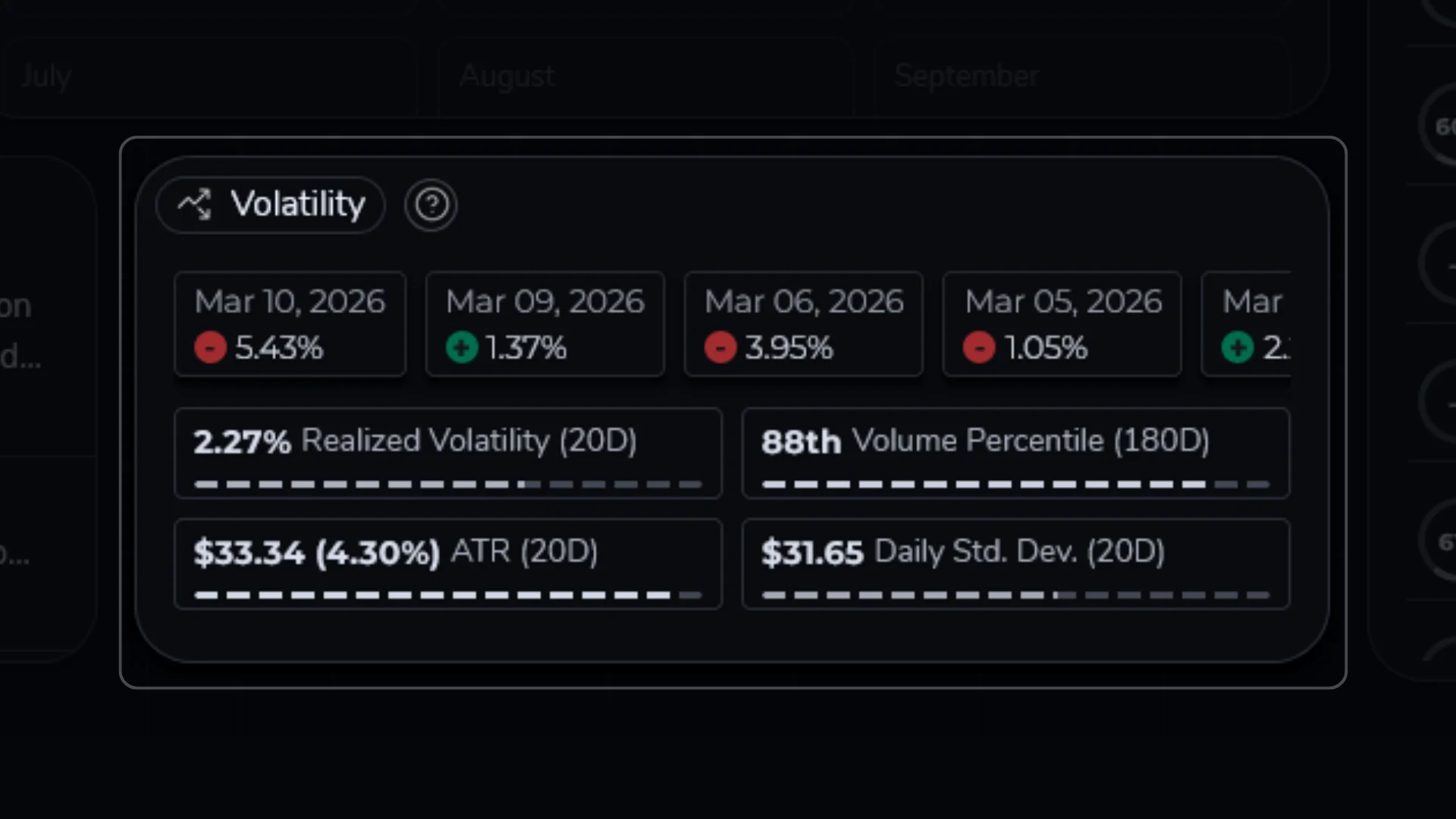
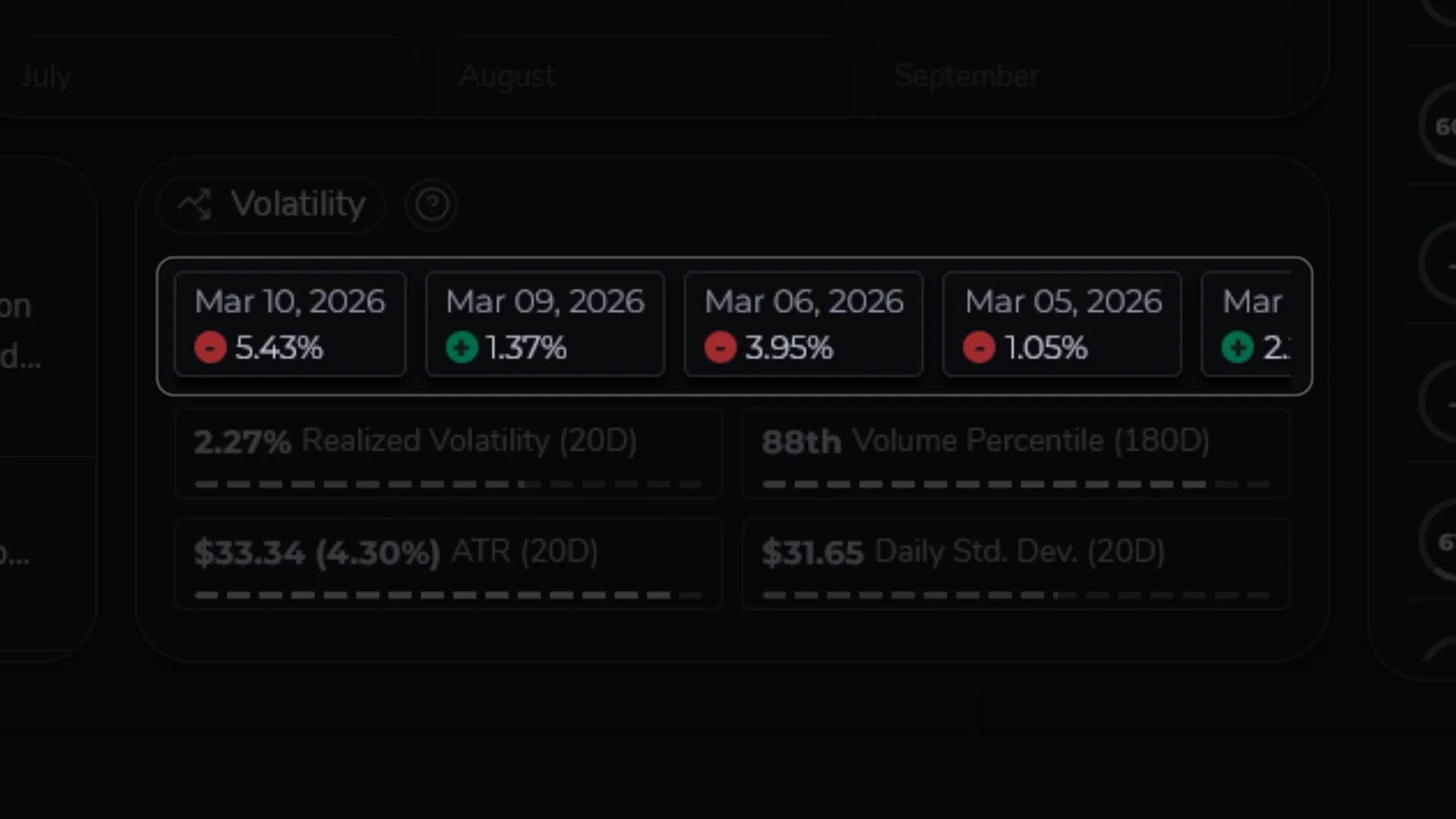
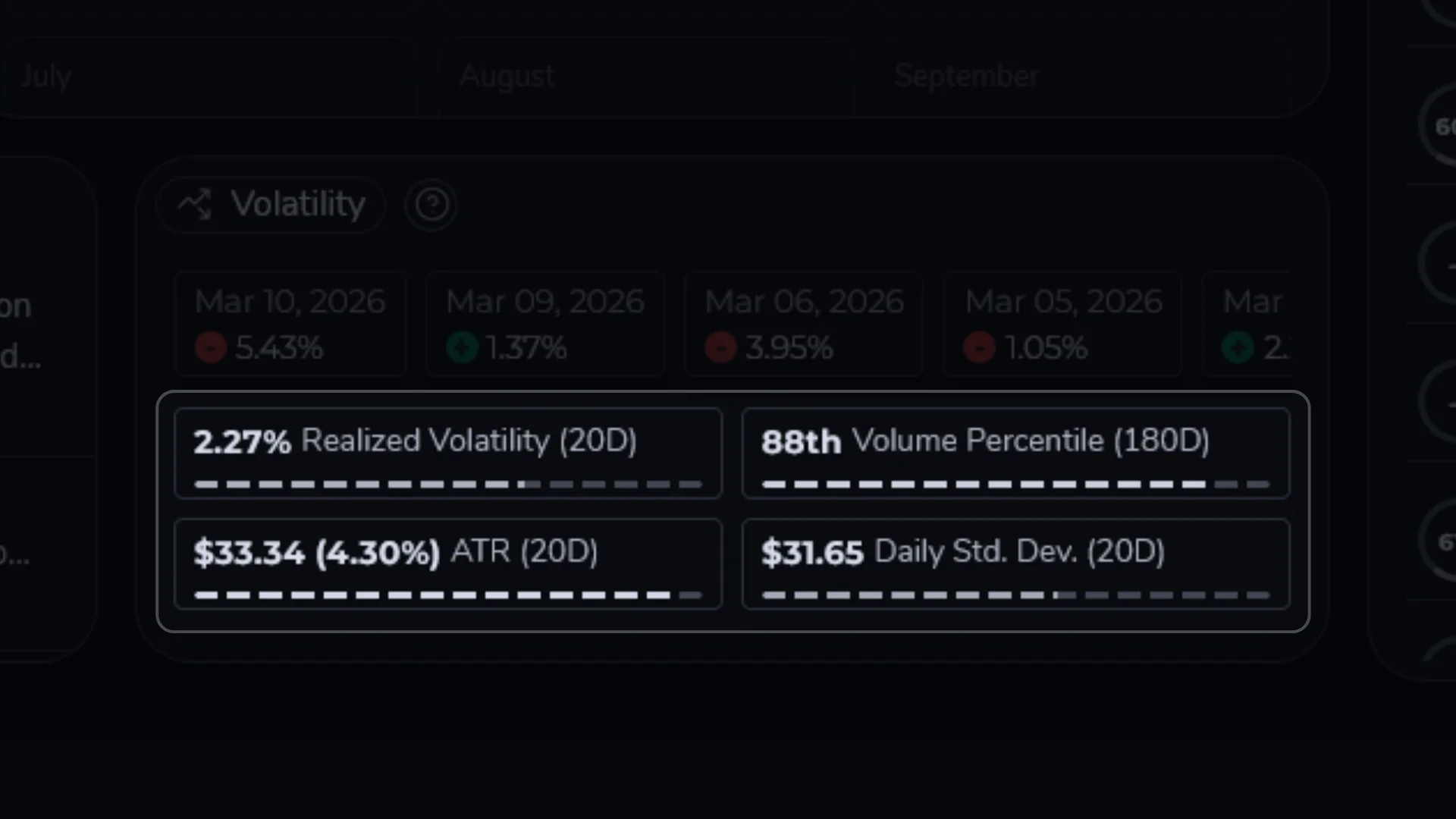
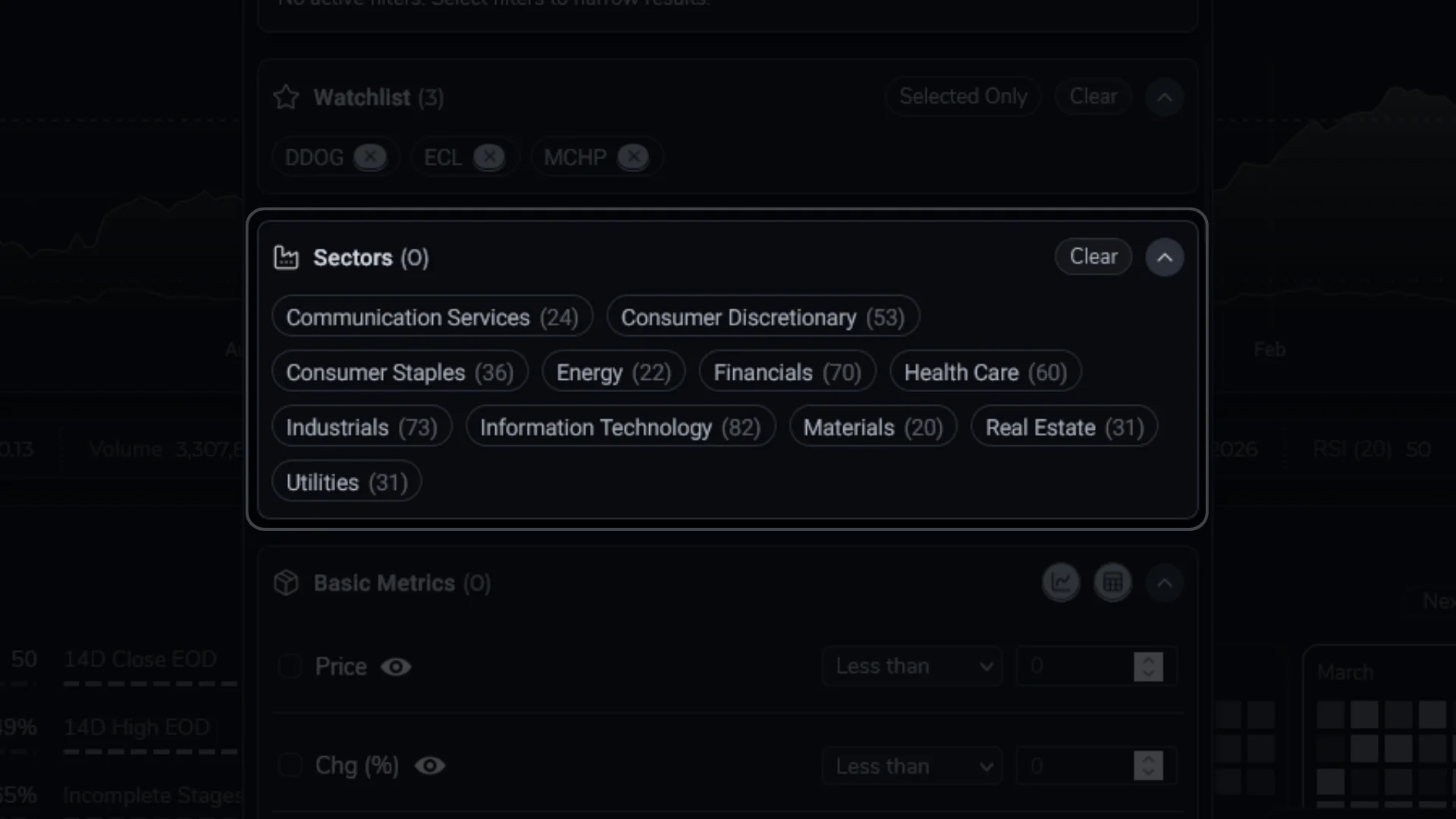
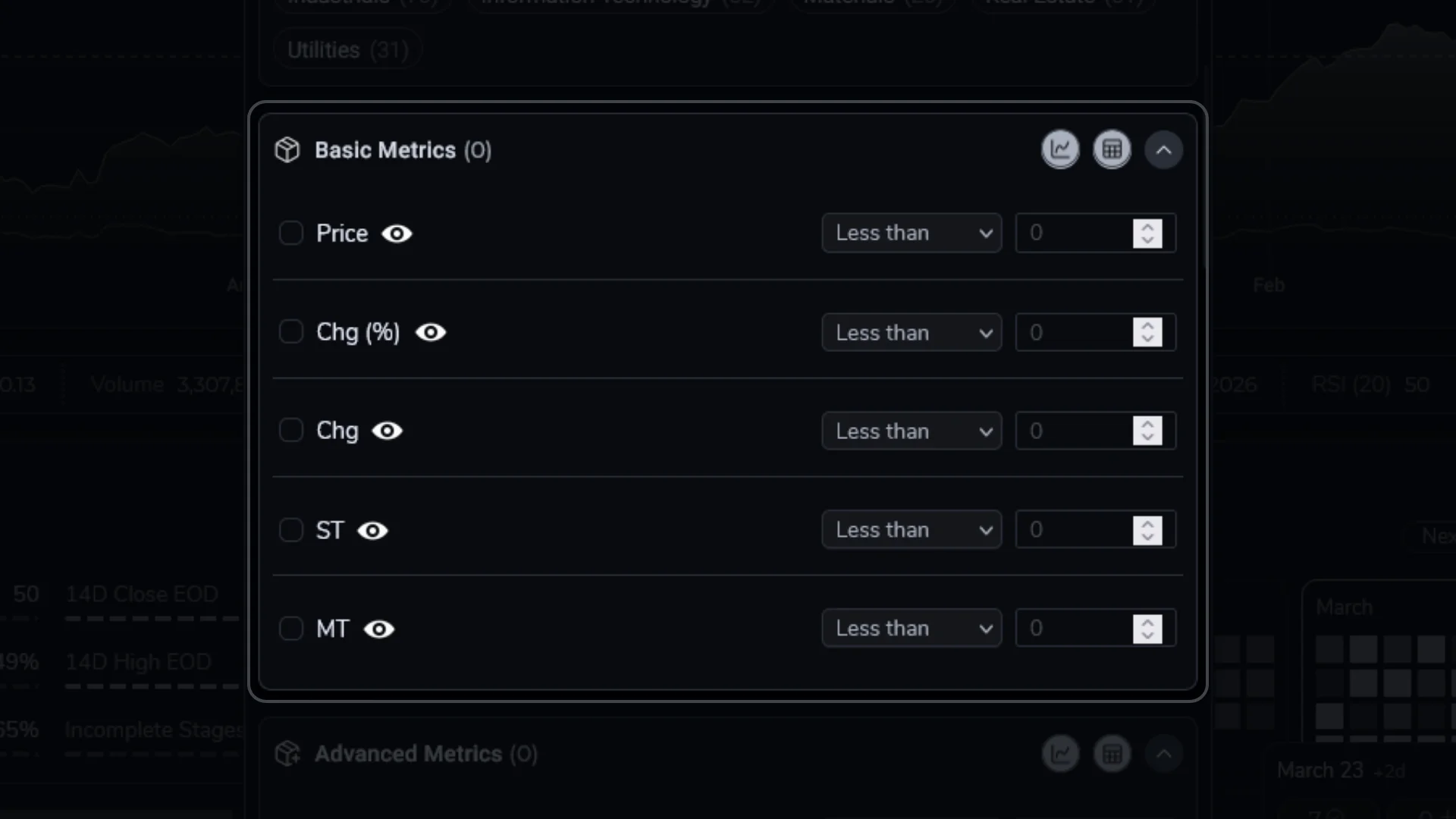
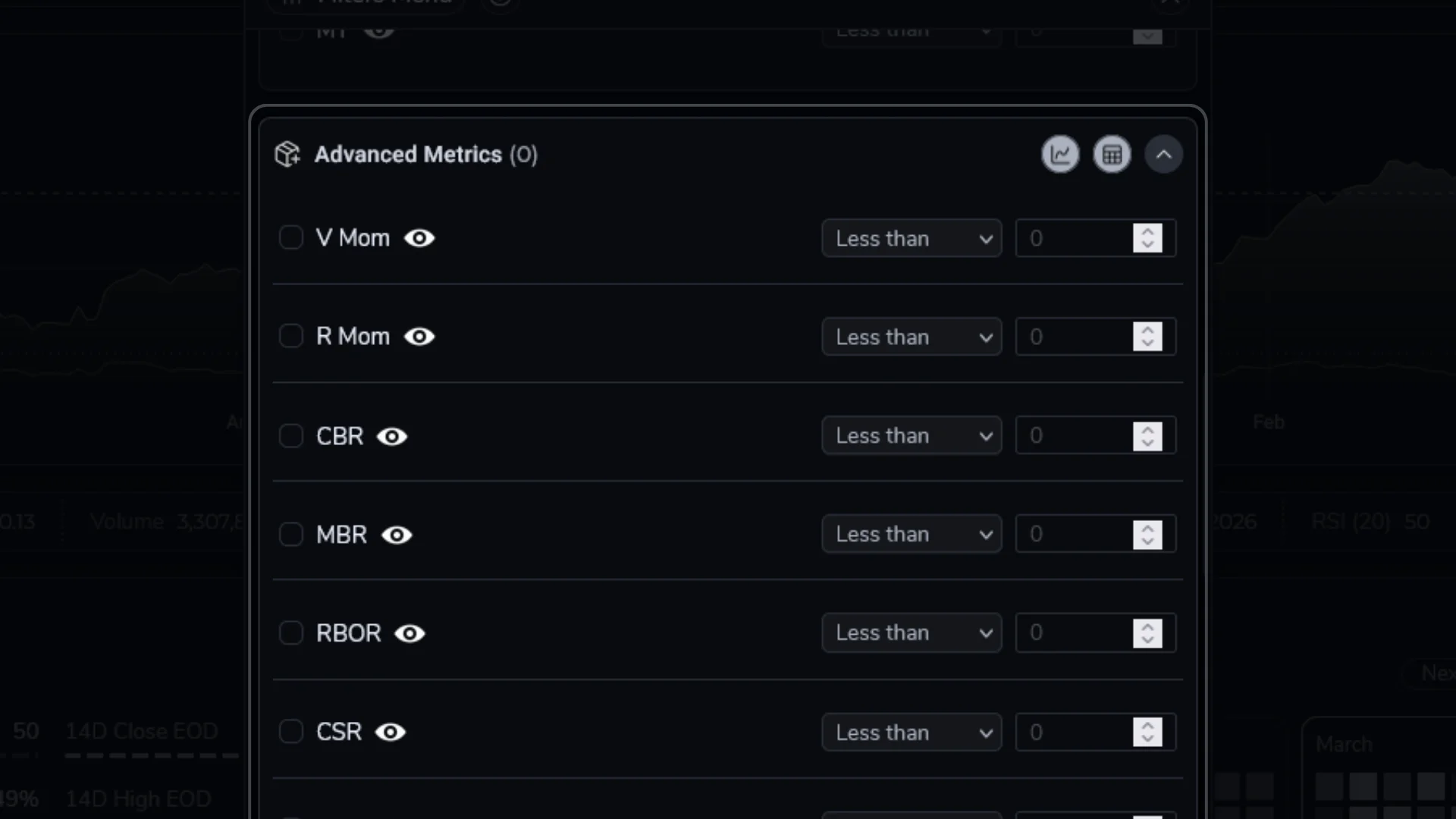
The Basic view focuses on one symbol at a time, with a price chart and a set of widgets (Snapshot, Outlook, Calendar, Volatility, News/About, and the Overview/Watchlist list). The Advanced view shows the same analytics as a sortable, filterable table across the entire universe. You can switch between them using the Basic/Advanced toggle in the dashboard header.
What does “Outlook” represent?
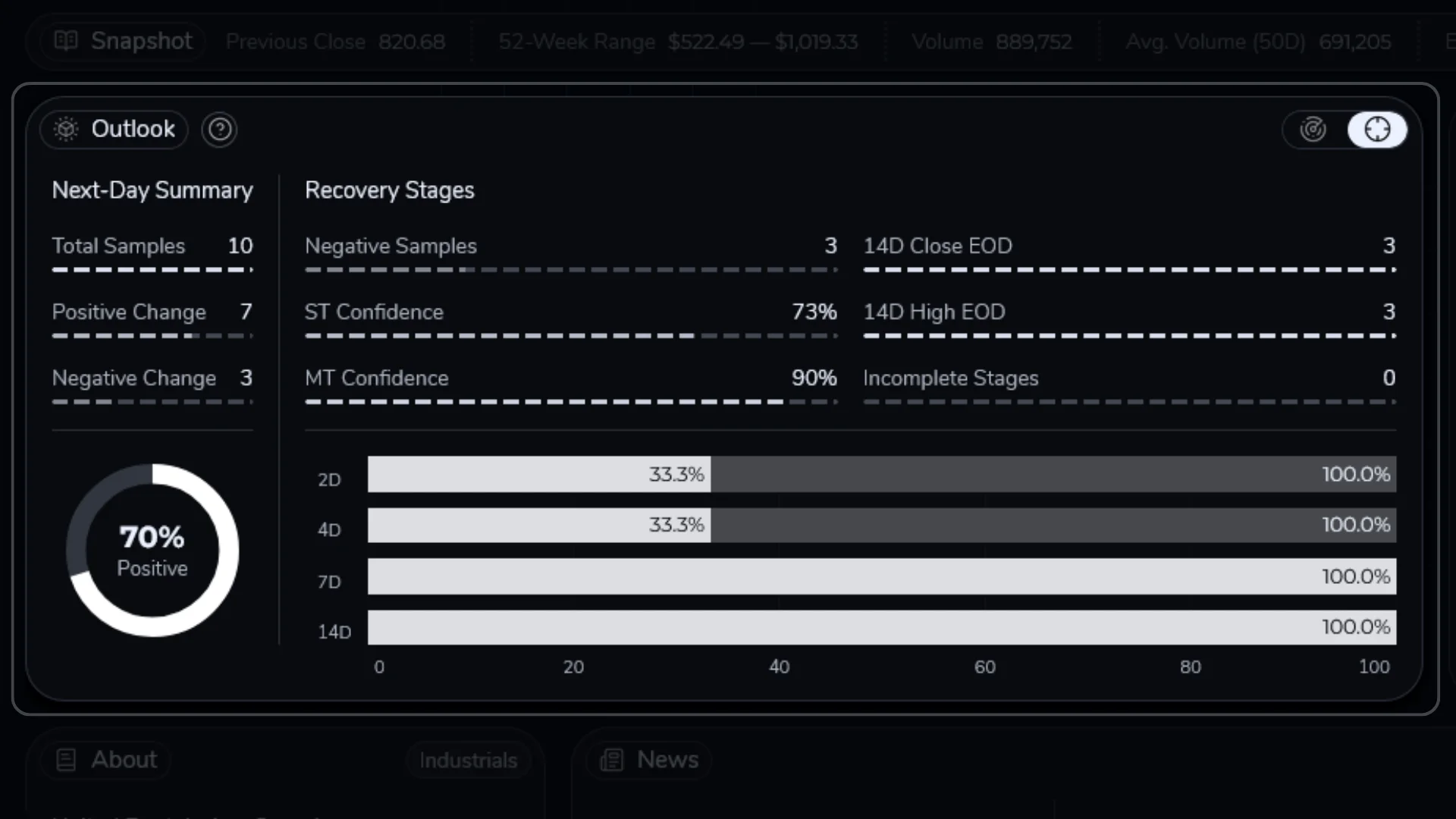
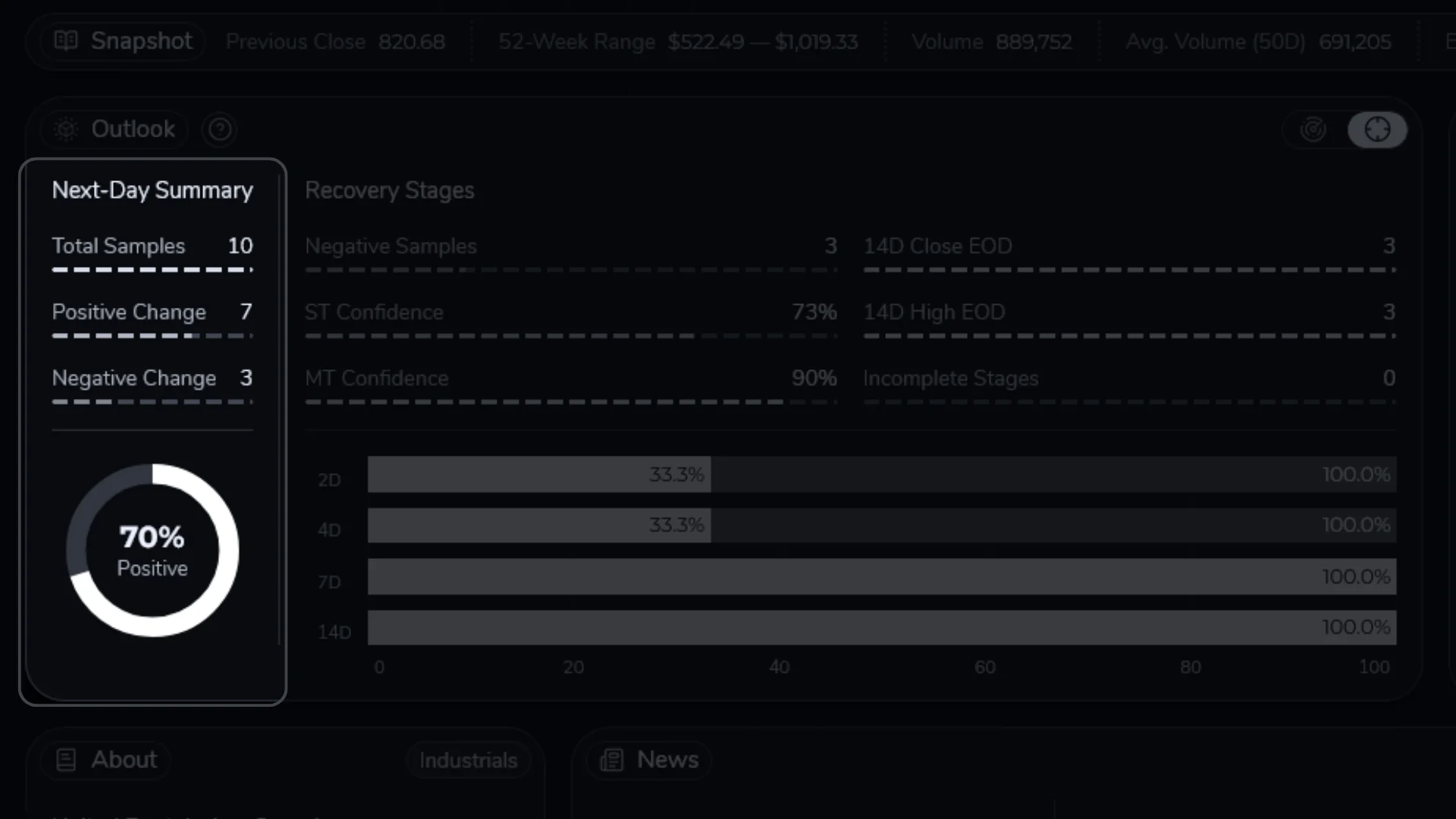
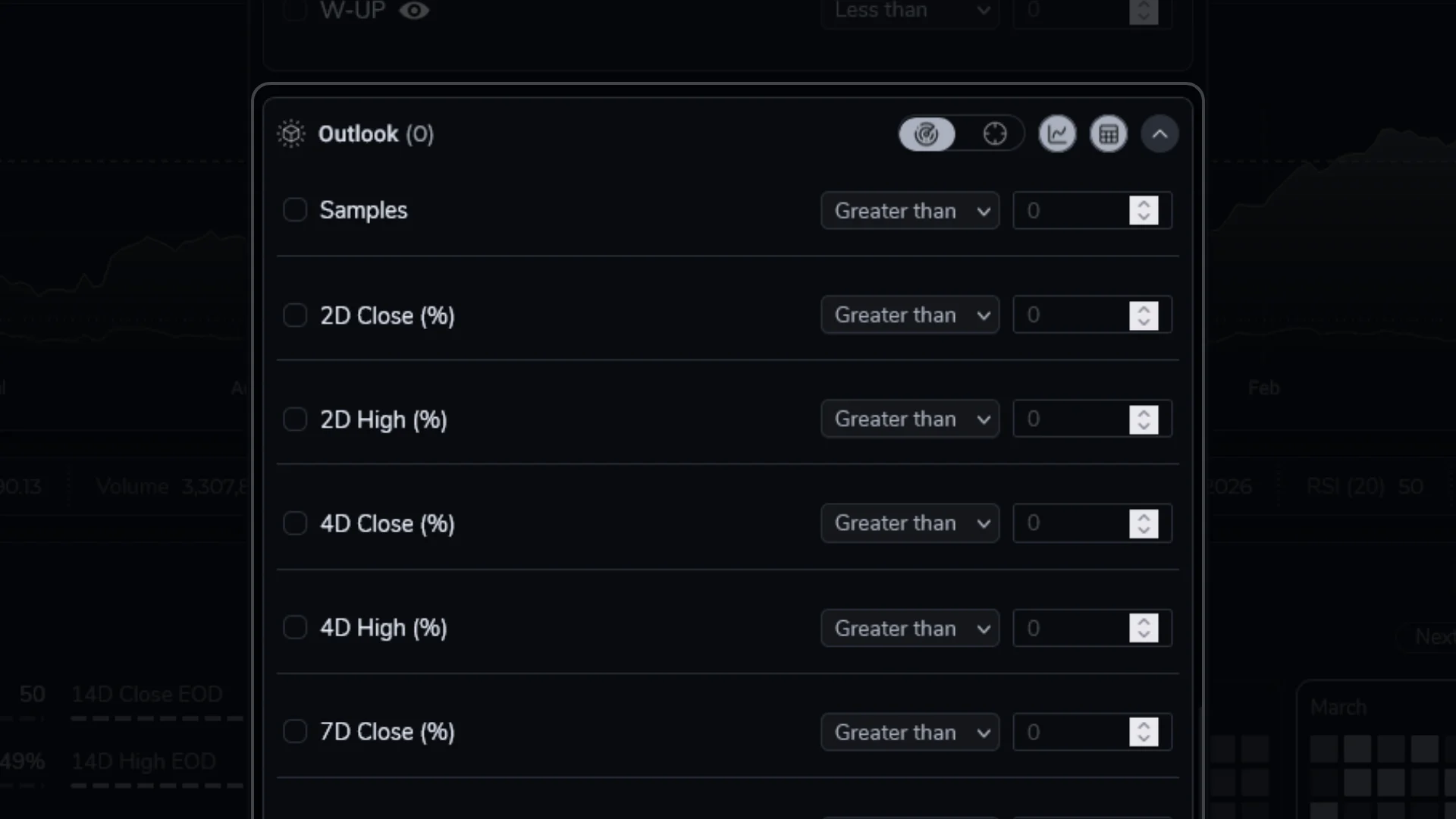
Outlook is a historical match-and-summarize view. It finds past days that looked similar to the current setup and shows what happened next (especially the next trading day).
What does “Confidence” represent?
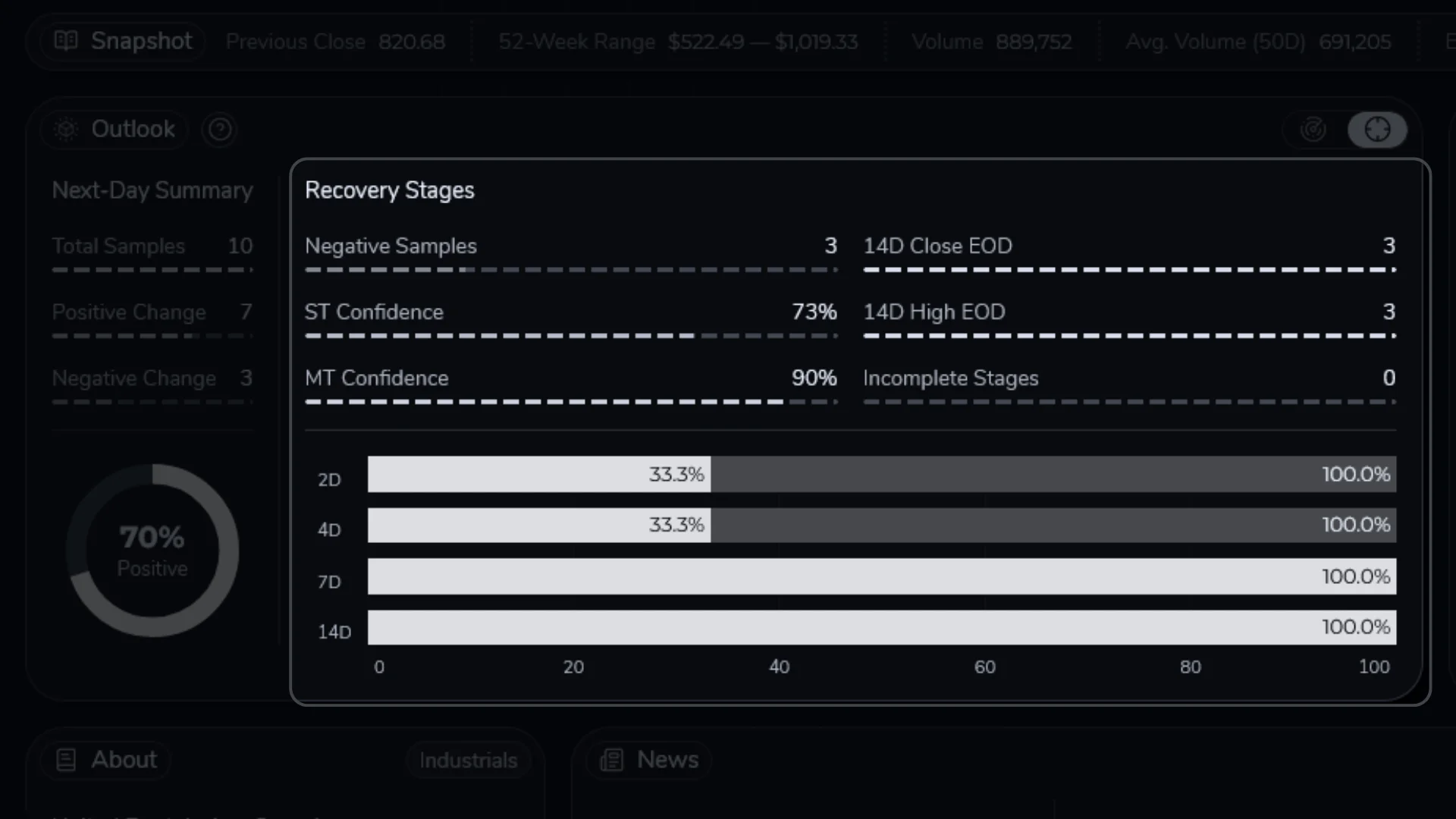
Confidence is a quick read of how consistent the matched history has been. Higher confidence usually means the sample is healthier and the outcomes agree more often. Lower confidence means the outcomes varied more (and/or the sample is thinner).
What do “Targeted” and “Cumulative” modes mean?
Both modes start by finding similar-looking days in history. Here, “similar-looking” means a similar mix of recent price action and indicators (momentum, volatility, range position, and often volume/participation). It is not one single indicator.
Targeted adds one extra filter: it matches the current streak stage (how many up or down price closes in a row). Cumulative does not split by that detail, so it pools more history together and is usually steadier.
For the full explanation (including definitions, why this split exists, and how to interpret disagreements), see Outlook and Confidence.
Is ArakiTrade giving me trading advice?
No. ArakiTrade surfaces historical relationships and probabilities so that you can make more informed decisions. It does not provide personalized recommendations, and it does not take your risk tolerance, portfolio constraints, or objectives into account. You remain responsible for your own investment decisions.
Why do numbers change from day to day?
As new market data arrives, the underlying history and rolling calculations evolve. This can shift both the measured outcomes (for example, average forward returns) and the associated confidence levels. Expect metrics to drift over time as the data set grows and the set of “similar days” changes.